Complete StruxDraft Tutorial

A comprehensive 22-step walkthrough covering every major feature — from PDF import to AutoFrame, steel design, retaining walls, wall highlighter, customizable libraries, and export.

Tutorial Overview

Follow these steps to master StruxDraft's full feature set. Steps 1–11 cover the core structural design workflow. Steps 12–22 cover advanced features like steel design, retaining walls, AutoFrame, wall highlighter, measurement tools, customizable databases, and CalcStudio.

Table of Contents

Core Workflow
Advanced Features
1. Launch & Create Project 12. Steel Beams (AISC 360) 2. Import PDF Plans 13. Steel Columns 3. Set Drawing Scale 14. Retaining Walls 4. Place Joist Regions 15. Wall Highlighter & Arch Strip 5. Place Beams 16. AutoFrame (Beta) 6. Columns & Load Path 17. Measurement Tools 7. Headers, Walls & Foundations 18. Advanced Annotations 8. Review Schedule Panel 19. Connected Loads Panel 9. Annotations & Keynotes 20. Customizable Libraries 10. Calculation Report 21. Grid Lines & DXF Export 11. Export PDF & Save 22. CalcStudio Workbench

Screenshot Placeholders: The dashed boxes below are placeholders for actual application screenshots. To add your own: take a screenshot while running StruxDraft (npm run tauri:dev), save it to the images/ folder, and replace the placeholder with an <img> tag.

1

Launch StruxDraft & Create a New Project

When you open StruxDraft, you'll see the main workspace with an empty canvas. The Title Bar at the top shows the project name (untitled by default). Use File → New Project or Ctrl+N to start fresh.

What you'll see:

  • Title Bar (top) — project name, file menu, save status
  • Toolbar (left sidebar) — structural element tools, annotation tools
  • Canvas (center) — main drawing area
  • Schedule Panel (right sidebar) — member schedules (empty initially)
  • PDF Thumbnail Panel (bottom-left) — page thumbnails after PDF import
📸 Screenshot: Main StruxDraft workspace layout
Save as: images/tutorial-01-workspace.png
2

Import PDF Construction Plans

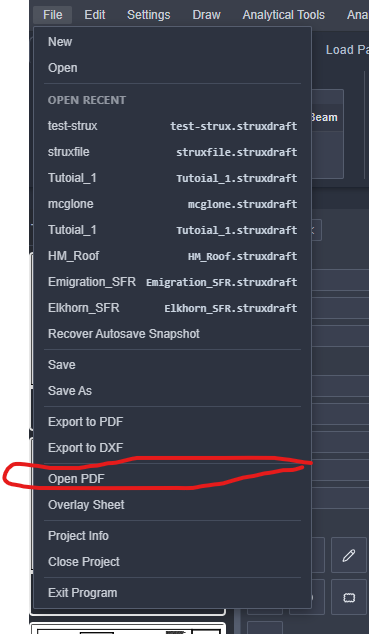
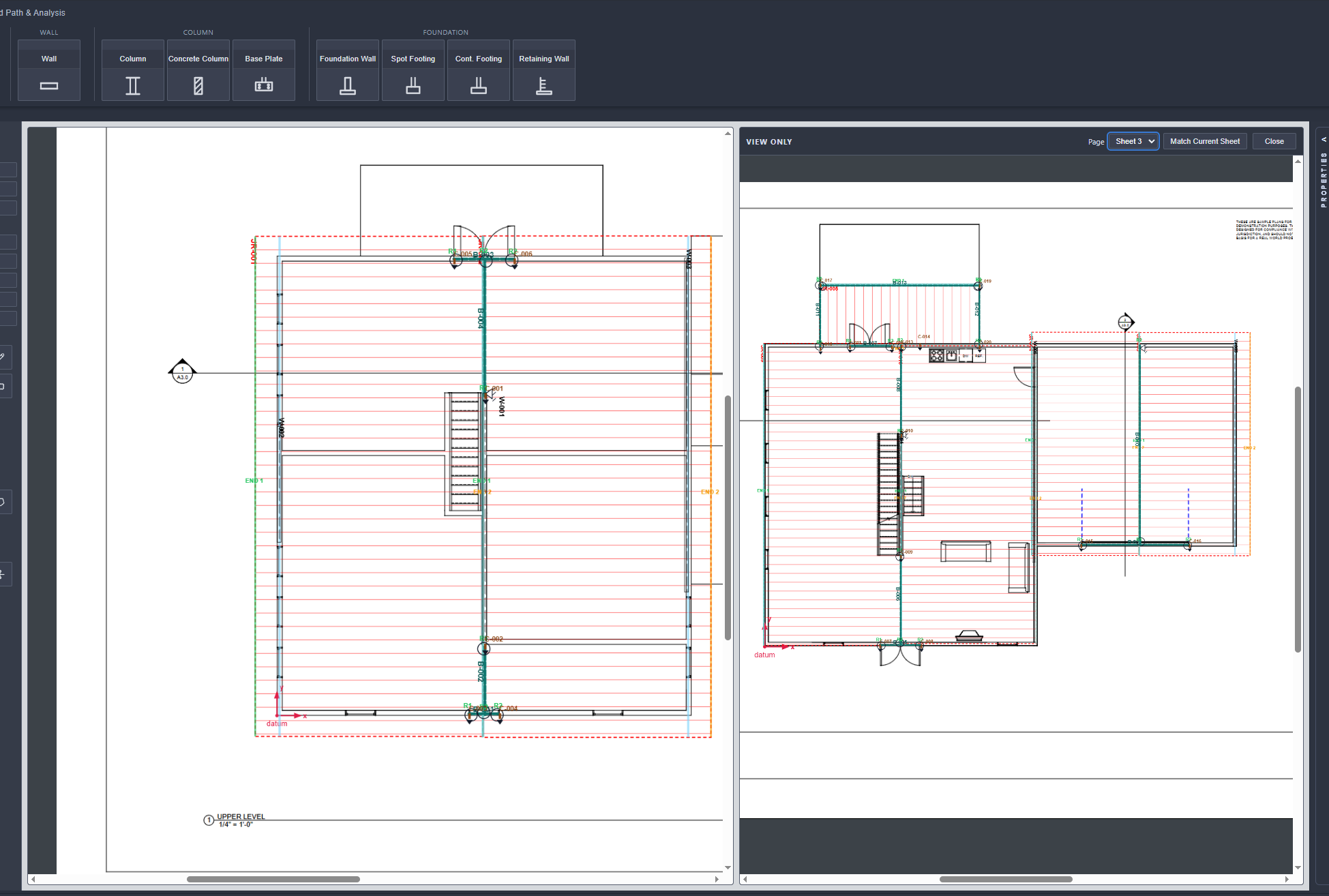
Go to File → Import PDF to load your architectural plan set. StruxDraft will render each page and display thumbnails in the bottom-left panel. Click a thumbnail to navigate to that page.

Where to look:

  • File menu (top-left) — Import PDF option
  • Thumbnail Panel (bottom-left) — shows all imported pages
  • Page navigation / arrow keys or click thumbnails
📸 Screenshot: PDF imported with thumbnails visible
Save as: images/tutorial-02-pdf-import.png
3

Set Your Drawing Scale

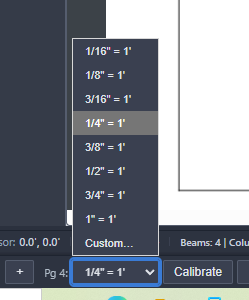
Before placing any elements, set the drawing scale so StruxDraft can compute real dimensions from your cursor positions. This is critical for accurate span lengths and member spacing.

How: Use the scale setting in the toolbar or settings dialog. Common residential scales are 1/4" = 1'-0" or 3/16" = 1'-0". Once set, the Quick Measure tool (Ctrl+Q) will show real-world dimensions as you drag.

📸 Screenshot: Scale setting dialog / toolbar indicator
Save as: images/tutorial-03-scale.png
4

Place Joist Regions

Select the Joist (Rect) tool (Ctrl+J) and drag a rectangle over the floor area. StruxDraft will create a joist region with default properties. Double-click the region to open the Joist Design Dialog where you can set:

  • Joist size (2×8, 2×10, 2×12, TJI-230, etc.)
  • Spacing (12", 16", 19.2", 24" o.c.)
  • Material type (DIM, LVL, TJI)
  • Species and grade (for DIM)
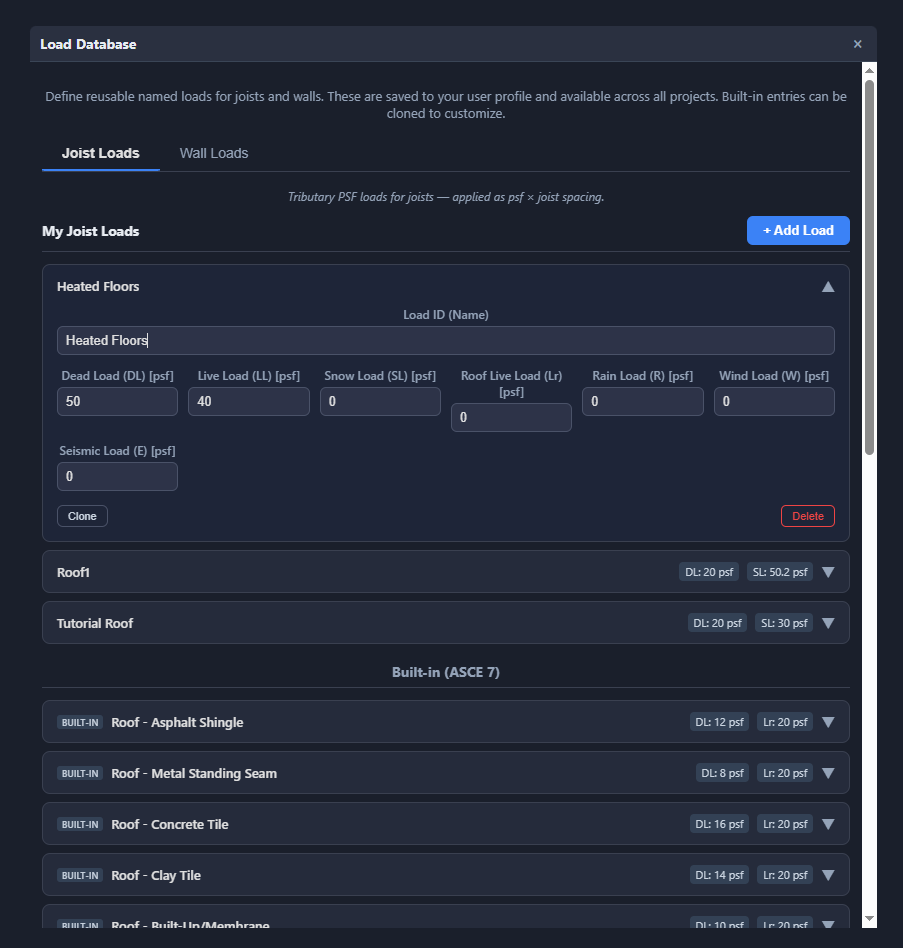
  • Dead load, live load, snow load (PSF)
  • Overhang, roof slope, multi-span options

For irregular floor shapes, use the Joist (Polygon) tool (Ctrl+S) to click vertices defining a custom boundary.

📸 Screenshot: Joist region placed on floor plan with design dialog open
Save as: images/tutorial-04-joists.png
5

Place Beams

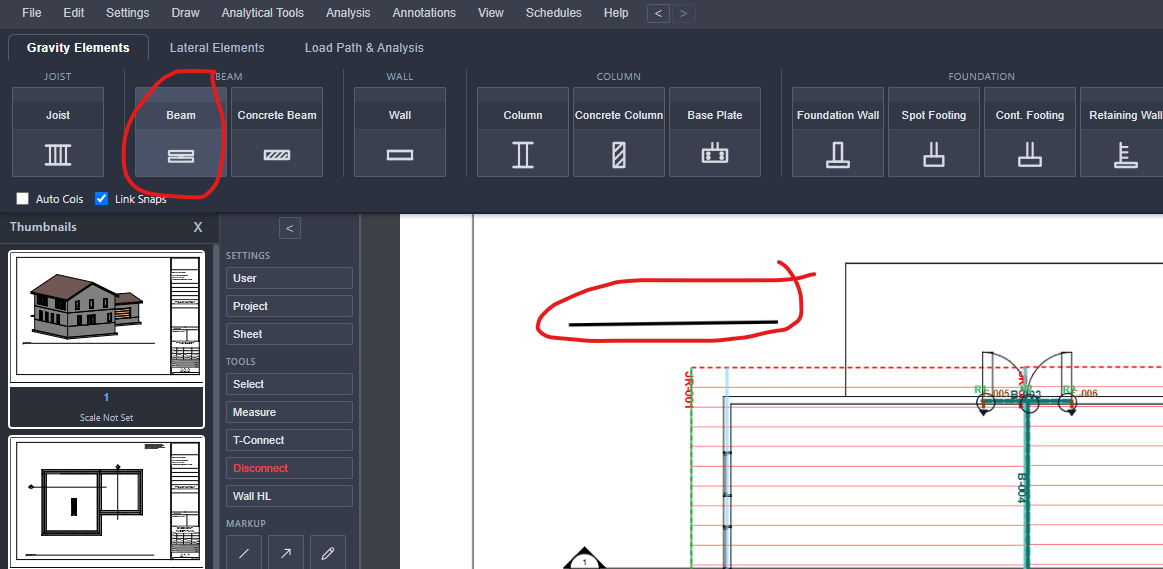
Select the Beam tool (Ctrl+B) and drag from one support point to another. Hold Shift while dragging to snap to horizontal or vertical. The beam appears on the plan, and its span is calculated from the drawing scale.

Double-click the beam to open the Beam Design Dialog:

  • Size, type (DIM/GLB/LVL/PSL), species, grade
  • Dead/Live/Snow loads — or connect to joist regions for automatic tributary loads
  • Overhang left/right, multi-span configuration
  • Partial-span loads and point loads
  • Real-time utilization results shown in the dialog (bending, shear, deflection, bearing)
📸 Screenshot: Beam placed on plan with design dialog showing utilization
Save as: images/tutorial-05-beams.png
6

Place Columns & Connect the Load Path

Select the Column tool (Ctrl+R) and click at beam endpoints. StruxDraft can auto-place columns at beam supports. The column automatically receives the beam reactions (R1 or R2) as axial load.

  • Set column height, size, and material in the Column Design Dialog
  • Stack type: Above Only or Above & Below
  • Cp stability calculation runs automatically
  • Connected load sources show in the dialog with DL/LL/SL breakdown

Connected Load Flow: At this point, your load path is: Joists → Beam → Column. If you change the joist spacing, the beam loads recalculate, which updates the column load automatically.

📸 Screenshot: Column at beam endpoint with connected loads panel
Save as: images/tutorial-06-columns.png
7

Place Headers, Walls & Foundation Elements

Continue building out the structure:

  • Headers (Ctrl+E) — Drag across window/door openings. Set trimmer and king stud quantities.
  • Load-Bearing Walls (Ctrl+W) — Drag along wall lines. Set stud size and spacing.
  • Spot Footings — Click to place under columns. Full ACI 318 design with punching shear, flexure, rebar layout.
  • Continuous Footings — Drag under bearing walls. Soil bearing and one-way shear checks.
  • Piers — Click to place. Square or round with rebar and tie detailing.
  • Foundation Walls — Drag to create. CMU, concrete, or ICF with lateral earth pressure check.
  • Anchor Bolts (Ctrl+A) — Click to place along sill plates.
📸 Screenshot: Complete structural overlay showing all member types
Save as: images/tutorial-07-all-members.png
8

Review the Schedule Panel

The Schedule Panel on the right side of the screen shows all placed members organized by type. Each entry shows the member tag, key properties, and a utilization badge:

  • PASS — All checks pass, utilization well under 100%
  • WARN — Approaching capacity (e.g., 85-100%)
  • FAIL — One or more code checks fail

Click any schedule entry to select and zoom to that member on the canvas. All properties are inline-editable — change a beam size right from the schedule and watch utilization update instantly.

📸 Screenshot: Schedule panel with utilization badges
Save as: images/tutorial-08-schedule.png
9

Add Annotations & Keynotes

Use the Annotation Toolbar to add markup to your plans:

  • Callouts — Click to place a text box with a leader line pointing to a structural condition
  • Textboxes (Ctrl+T) — Free-floating text for general notes, titles
  • Lines & Arrows (Ctrl+L) — Mark up load paths, dimensions, references
  • Measure — Persistent dimension lines with auto-calculated length based on drawing scale
  • Circles & Rectangles — Highlight areas of concern or exclusion zones

Keynotes are managed in the Keynote Schedule — add numbered notes that reference specific conditions on the plans.

📸 Screenshot: Annotations on the plan — callouts, measures, textboxes
Save as: images/tutorial-09-annotations.png
10

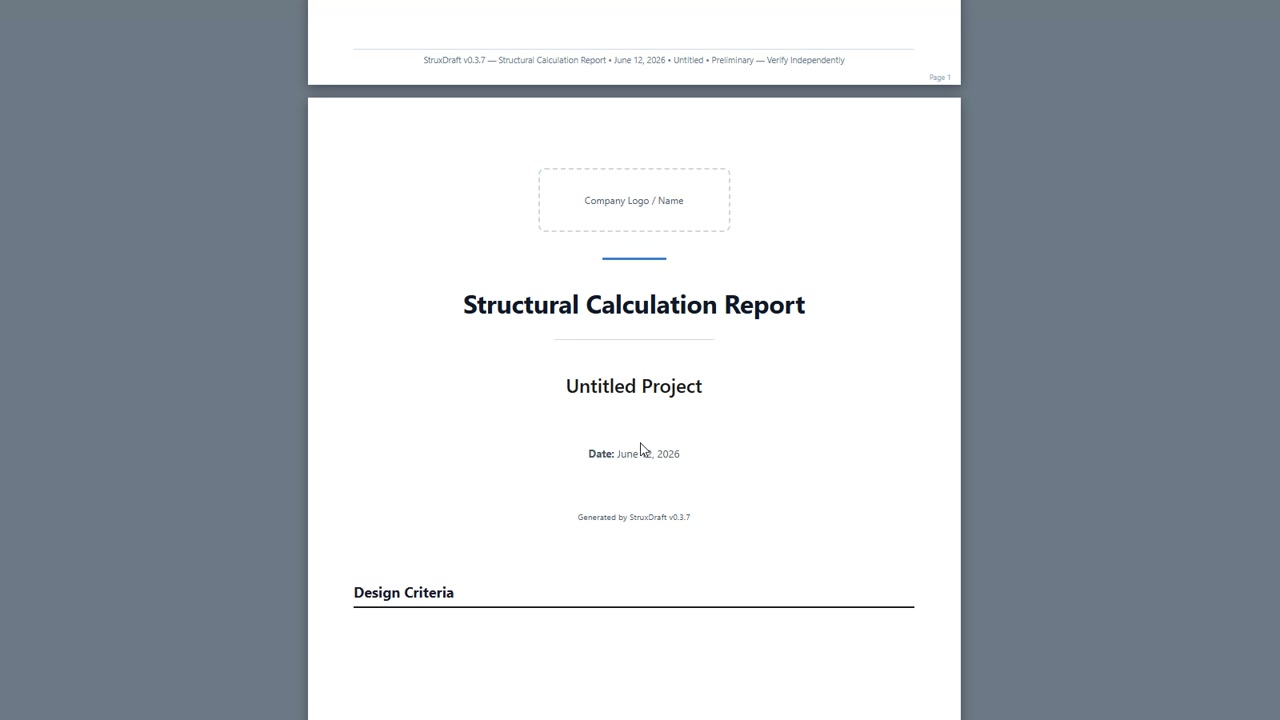
Generate the Calculation Report

Open the Calculation Report from the toolbar or menu. StruxDraft generates a comprehensive structural calculation document with:

  • Title Block — Project name, client, date, "NDS 2018 ASD"
  • Summary — Total members, passing/failing counts, drawing scale
  • Design Criteria — Analysis method, deflection limits, default loads
  • Beam Cards — Span, size, species/grade, loads, bending/shear/deflection/bearing table with actual vs. allowable vs. utilization
  • Joist Cards, Column Cards, Header Cards — Same detailed format per member type
  • Similar-To Members — Lightweight SimCards referencing the parent

Click Print to use your browser's native print dialog — print to PDF or to a physical printer.

📸 Screenshot: Calculation report with BeamCard detail
Save as: images/tutorial-10-calc-report.png
11

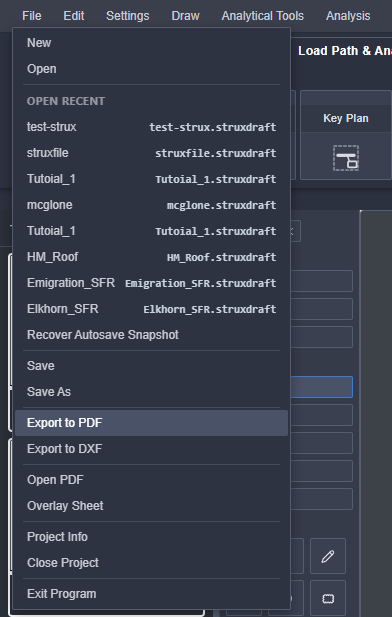
Export PDF & Save Your Project

When your design is complete:

  • Export PDF — Multi-page PDF export at 2× resolution. Includes all structural elements, annotations, and schedule tables per page.
  • Save Project (Ctrl+S) — Saves as .sdp (JSON) file via native OS dialog. Contains all elements, page data, annotations, and settings.
  • Save As (Ctrl+Shift+S) — Save to a new file path.

Your .sdp project file can be reopened anytime to continue editing, or elements can be imported into another project.

📸 Screenshot: Export PDF dialog / saved project
Save as: images/tutorial-11-export.png

Advanced Features

Once you're comfortable with the core workflow, explore these powerful features to get even more out of StruxDraft.

12

Steel Beams — AISC 360 Design

Select the Steel Beam tool from the toolbar and drag from support to support — same workflow as wood beams, but the design dialog opens to the AISC 360 world.

What you configure in the Steel Beam Design Dialog:

  • Section — Browse the full AISC catalog: W4 through W14+, or HSS rectangular/round sections
  • Grade — A992 (W-shapes, Fy=50 ksi), A500 Gr. B (HSS, Fy=46 ksi), A500 Gr. C (HSS, Fy=50 ksi), or A36
  • Loads — Dead, live, and snow loads as uniform (PLF), partial-span, or point loads with DL/LL/SL disaggregation
  • Multi-span — Simple span or 2-span continuous with left/right overhangs
  • Unbraced length (Lb) — For lateral-torsional buckling calculation with Cb moment gradient factor

What StruxDraft checks automatically (both LRFD and ASD simultaneously):

  • Flexure (AISC Ch. F) — Computes Lp, Lr, classifies compact/non-compact/slender, φMn and Mn/Ω
  • Shear (AISC Ch. G) — φVn = 0.6×Fy×Aw×Cv1 with h/tw classification
  • Deflection — Separate DL, LL, SL deflection with L/360 (LL) and L/240 (TL) limits
  • Utilization badges — Bending, shear, and deflection utilization ratios color-coded on the schedule

Steel beams participate in the connected load flow — joist regions feed tributary loads, and steel beam reactions feed into steel columns or footings below.

📸 Screenshot: Steel beam design dialog with AISC checks
Save as: images/tutorial-12-steel-beam.png
13

Steel Columns — AISC Ch. E Compression

Select the Steel Column tool and click to place at steel beam endpoints (or anywhere). On the canvas, StruxDraft renders the actual cross-section shape — W-shapes show the I-section with flanges and web; HSS sections show the double-walled rectangle.

What you configure:

  • Section — Same AISC catalog as steel beams (W-shapes and HSS)
  • Height — Column unsupported length
  • K-factor — Effective length factor (default 1.0, adjustable for different end conditions)
  • Rotation — Rotate the cross-section on the plan view

What StruxDraft checks (LRFD and ASD):

  • KL/r slenderness ratio — Uses the governing axis (weak or strong)
  • Euler buckling stress — Fe = π²E/(KL/r)²
  • Critical stress (Fcr) — Inelastic or elastic based on KL/r vs. 4.71√(E/Fy)
  • Nominal strength — Pn = Fcr × Ag, with φPn (LRFD) and Pn/Ω (ASD)

Axial loads from connected steel beams flow in automatically. LRFD and ASD load combinations per ASCE 7-22 are evaluated simultaneously — the govering combination is reported.

📸 Screenshot: Steel column with rendered W-shape cross-section and design results
Save as: images/tutorial-13-steel-column.png
14

Retaining Wall Design

Select the Retaining Wall tool and click to place on your foundation plan. The Retaining Wall Design Dialog is the most comprehensive member dialog in StruxDraft — it combines ASD stability with ACI 318-19 LRFD strength design.

Geometry inputs:

  • Stem — Height, top thickness, bottom thickness (tapered or constant)
  • Base slab — Toe length, heel length, base thickness
  • Shear key — Optional key depth and width for sliding resistance
  • Backfill slope (β) — Sloped backfill angle for Coulomb earth pressure

Soil & material inputs:

  • Soil unit weight (γ), friction angle (φ), base friction coefficient (μ)
  • Allowable bearing pressure (q_allow), surcharge load (PSF)
  • Concrete f'c and rebar fy, γ_concrete
  • Bar size and spacing for stem, toe, heel, plus horizontal and rear T&S bars
  • Per-location cover overrides (soil side vs. formed side)

What StruxDraft checks:

  • Earth Pressure — Ka (Rankine or Coulomb), with horizontal and vertical components for sloped backfill
  • Overturning — SF_overturn ≥ 1.5 with eccentricity & middle-third check
  • Sliding — SF_sliding ≥ 1.5 with optional passive pressure and shear key
  • Bearing — Trapezoidal pressure distribution, q_toe and q_heel, DCR check
  • Stem strength — ACI 318-19 flexure (φMn) and shear (φVn) at stem base
  • Toe & Heel strength — Cantilever flexure and shear with net pressure distributions
  • Minimum reinforcement — ACI §11.6.1 wall min ratios + §24.4.3.2 T&S reinforcement
📸 Screenshot: Retaining wall design dialog with stability and strength checks
Save as: images/tutorial-14-retaining-wall.png
15

Wall Highlighter & Architectural Stripping

One of StruxDraft's most unique features. When working with architectural PDFs full of furniture, fixtures, room labels, and hatching, the Wall Highlighter lets you isolate just the structural walls.

Two modes:

  • Layer-Based Stripping (OCG PDFs) — If your PDF has named layers, StruxDraft detects them and auto-selects architectural layers (furniture, plumbing, electrical, HVAC) for removal. Walls, dimensions, and structural layers are kept. One-click "Auto-Select" handles the common patterns.
  • Paint-Based Stripping — For flat PDFs without layers: paint green (keep) strokes over wall areas and red (remove) strokes over architectural clutter. StruxDraft's raster pipeline processes the mask.

What happens under the hood:

  • Your keep/remove strokes are rasterized as a binary mask
  • The PDF page is rendered at high DPI and masked to isolate wall ink
  • Otsu thresholding separates foreground (walls) from background (paper)
  • Morphological close fills small gaps in wall lines
  • Zhang-Suen skeletonization extracts one-pixel-wide wall centerlines
  • Polylines are traced, simplified, and optionally snapped to orthogonal angles
  • Result can be exported as a DXF file on a WALL_CENTERLINES layer

This is invaluable when you receive busy architectural plans and need a clean structural view to work from.

📸 Screenshot: Wall highlighter with keep/remove strokes and clean result
Save as: images/tutorial-15-wall-highlighter.png
16

AutoFrame — Automatic Structural Framing BETA

AutoFrame is a one-click automatic framing tool. After you've placed your walls on the plan, AutoFrame analyzes the wall geometry and generates a complete framing layout — joists, beams, and headers — sized to code.

How to use it:

  1. Place all load-bearing walls on plan (Step 7)
  2. Open the AutoFrame dialog from the toolbar
  3. Configure framing preferences: joist spacing, preferred member types (DIM/TJI/LVL), species/grade, beam ply count
  4. Optionally exclude specific rooms or set per-room live load overrides
  5. Click "Run AutoFrame"

What AutoFrame does:

  • Wall Graph — Builds a graph from wall segments, clustering endpoints with adaptive tolerance based on wall thickness and scale
  • Room Detection — Extracts enclosed polygons using a planar face traversal algorithm; classifies as bedroom, living room, etc. using annotation text
  • Joist Layout — Determines optimal joist direction (perpendicular to short dimension), identifies bearing walls, generates joist regions at the configured spacing
  • Beam Placement — When a span exceeds the max for the chosen joist size (from NDS-derived span tables), AutoFrame subdivides the room with beams intersected to the room polygon
  • Header Detection — Finds gaps between collinear wall segments and creates headers across door/window openings
  • Member Sizing — Iterates through candidate sizes (smallest to largest) using the full NDS calc engine until bending, shear, and deflection all pass

AutoFrame is in beta — review the generated framing and adjust as needed. It's a powerful starting point, not a final answer.

📸 Screenshot: AutoFrame dialog and generated framing layout
Save as: images/tutorial-16-autoframe.png
17

Measurement Tools — Linear, Polyline & Area

StruxDraft includes four measurement tools beyond the basics. All persistent measurements are saved with the project and use your drawing scale for real-world values.

Quick Measure (Ctrl+Q):

  • Temporary — drag to measure, value appears in real-time, disappears when you switch tools
  • Perfect for checking a dimension before committing to element placement

Linear Measure (Annotation Toolbar):

  • Persistent dimension line with tick marks at each end
  • Auto-calculates length from drawing scale — displays as feet-inches (imperial) or meters (metric)
  • Click the measurement text to manually edit the displayed length
  • Saved with the project like any other annotation

Polyline Measure (Annotation Toolbar):

  • Click to place vertices defining a multi-segment path
  • Each segment shows its individual length, plus a total accumulated length label
  • Great for measuring irregular wall runs, pipe routes, or complex edges
  • Vertices are draggable after placement

Area Measure (Annotation Toolbar):

  • Click vertices to define a closed polygon
  • Shoelace formula calculates the enclosed area — displays in SF (or m² for metric)
  • Also shows perimeter length
  • Essential for tributary area calculations, room areas, or verifying footing plan dimensions
📸 Screenshot: Area measure polygon + polyline measure on a floor plan
Save as: images/tutorial-17-measurements.png
18

Advanced Annotations — Full Markup Toolkit

The Annotation Toolbar (left sidebar, below the structural tools) gives you 13 markup tools. Here's the complete set:

  • Line — Straight line with adjustable color and stroke width
  • Arrow — Directional arrow; use for load paths, force indicators, or references
  • Pencil (Freehand) — Sketch freely on the canvas; great for circling problem areas or quick hand-drawn notes
  • Rectangle — Geometric rectangle with optional fill color and opacity; can act as a whiteout block
  • Circle — Circular annotation with adjustable fill and stroke
  • Highlighter — Semi-transparent overlay rectangle (default 28% opacity); highlight bearing walls, shear panels, or any region without obscuring the drawing
  • Callout — Text box + leader arrow pointing to a plan feature; double-click to edit text, drag to reposition
  • Textbox — Free-floating text; double-click to edit inline, configurable font size/color/bold/italic, optional whiteout background
  • Section Callout — Section cut line with a bubble at the endpoint containing section ID (top) and sheet reference (bottom) — standard structural drawing convention
  • Span Annotation — Dimension-style indicator with automatic length label from drawing scale; great for marking clear spans or tributary widths
  • Linear Measure — Persistent dimension with tick marks (see Step 17)
  • Polyline Measure — Multi-segment path measurement (see Step 17)
  • Area Measure — Polygon area calculation (see Step 17)

Annotation features:

  • Color picker — 12 preset colors or custom hex; applies to all drawing annotations
  • Snap to grid — Toggle snap mode for precise placement
  • Multi-select & group move — Shift+click to select multiple annotations, then drag to move as a group
  • Right-click context menu — Delete, duplicate, bring to front/back
  • Copy/PasteCtrl+C/V works on annotations too, with offset
📸 Screenshot: Annotation toolbar with various annotation types on the plan
Save as: images/tutorial-18-annotations-advanced.png
19

Connected Loads Panel — Full Load Path Transparency

When you select a beam, column, or footing, the Connected Loads Panel shows exactly where every load comes from. This is StruxDraft's most powerful verification tool.

What the panel shows:

  • SVG Load Diagram — A graphical schematic of the member with all connected loads rendered visually (distributed, point, reaction arrows)
  • Connection Table — Each row shows the source member, connection type (tributary, point load, direct), and DL/LL/SL breakdown in pounds or PLF
  • Reaction side — For beam-to-column connections, shows whether the load comes from R1 (left), R2 (right), or R_mid (interior support)
  • Cumulative loads — For columns receiving loads from multiple beams, walls, and/or upper-story framing, the table shows the sum disaggregated by load type

How connected loads work:

  • Joist regions → beams: tributary load based on joist span × spacing × PSF loads
  • Walls → beams: self-weight PLF (stud size × spacing × height × density)
  • Beams → columns: R1/R2 reactions with DL/LL/SL disaggregation (never pre-factored)
  • Columns → footings: accumulated axial DL/LL/SL for soil bearing and concrete checks
  • Steel beams ↔ steel columns: same system — reactions flow into steel columns using LRFD + ASD combos

The load flow engine includes circular reference detection — if a load path loops back on itself, it's flagged without crashing.

📸 Screenshot: Connected Loads Panel with SVG diagram and connection table
Save as: images/tutorial-19-connected-loads.png
20

Customizable Material Libraries & Load Combinations

StruxDraft's database system is fully customizable. Behind every material dropdown, grade selector, and load combination set, there's a CSV database table you can extend or override.

The 15 database tables:

  • Materials — Master material list (wood, steel, masonry, concrete)
  • Wood Grades — Species, grade, Fb, Ft, Fv, Fc_perp, Fc, E, Emin per NDS 2018
  • Steel Grades — A992, A36, A500 Gr. B/C with Fy, Fu, E
  • Masonry Grades — CMU unit types, mortar types, f'm values
  • Concrete Grades — f'c values with aggregate density options
  • Wood Shapes — Dimensional lumber, engineered wood section properties
  • Steel Shapes — W-shapes and HSS with full AISC section data
  • Masonry/Concrete Shapes — Block and pour dimensions
  • Connectors (Hangers) — Simpson hanger catalog with Fv/Fl/Fu capacities
  • Connectors (Hold-Downs) — Simpson hold-down catalog with allowable tension
  • Load Combinations — ASD and LRFD combo sets with DL/LL/SL/Lr/R factors and CD values
  • Governing Codes — NDS 2018, AISC 360-16, ACI 318-19 references
  • Material Standards — ASTM and code standard references
  • Unit Conversions — Imperial/metric conversion factors

How customization works:

  • Default layer — Built-in CSVs that ship with the app (read-only)
  • User layer — Matching user CSV files where you add new rows; merged by ID with defaults
  • Runtime overrides — Project-level overrides stored in localStorage; useful for project-specific material values or regional codes
  • Custom load combos — Define your own ASD or LRFD combination sets; assign a set key per project and the calc engine uses your combos automatically

Example: a local jurisdiction requires a different snow load factor? Create a custom load combination set with your factors, assign it to the project, and every member analysis uses your combos.

📸 Screenshot: Database editor showing custom material grades or load combos
Save as: images/tutorial-20-databases.png
21

Grid Lines & DXF Export

Grid Lines:

  • Place column grid lines on the plan with auto-numbered bubbles (A, B, C... or 1, 2, 3...)
  • Grid lines snap to existing columns and can be copied across pages
  • Standard structural grid style — line with a circle bubble at each end containing the grid label

DXF Export:

  • Export your entire structural design to DXF format for use in AutoCAD, Revit, or any CAD software
  • Elements are organized into layers: BEAMS, COLUMNS, WALLS, JOISTS, STEEL_BEAMS, STEEL_COLUMNS, FOOTINGS, ANNOTATIONS, GRID_LINES
  • Coordinates are converted through your drawing scale for accurate real-world dimensions
  • Includes text labels for member tags, sizes, and grid references
  • The Wall Highlighter pipeline can also export extracted wall centerlines as DXF on a WALL_CENTERLINES layer
📸 Screenshot: Grid lines on plan + DXF export dialog
Save as: images/tutorial-21-grid-dxf.png
22

CalcStudio — Standalone Calculation Workbench

CalcStudio is a dedicated calculation environment that uses the same NDS 2018 / AISC 360 / ACI 318-19 engine as StruxDraft — but without the PDF overlay. Access it via ?mode=detached-calc query param or from the app menu.

When to use CalcStudio:

  • Proposal-stage sizing — Quickly check a beam or footing before committing to a full design
  • Field engineering — Verify a member on-site without opening a full project
  • Education & training — Explore how design values, adjustment factors, and load combinations interact
  • Independent checks — Verify a StruxDraft design with a standalone calculation for QA

CalcStudio features:

  • Sidebar with member type selector (beam, joist, column, header, spot footing, pier, steel beam, steel column, retaining wall)
  • Full property editor with the same inputs as the StruxDraft design dialogs
  • Step-by-step calculation output showing every variable, equation, code reference, and intermediate value
  • Override length/span manually (no canvas dependency)
  • Save/load calculation sets independently from StruxDraft projects
  • Printable calculation sheets formatted for submittal
📸 Screenshot: CalcStudio interface with sidebar and calculation output
Save as: images/tutorial-22-calcstudio.png

Keyboard Shortcuts Reference

Quick access to every tool in StruxDraft. Most shortcuts work with Ctrl (Windows/Linux) or Cmd (Mac).

ActionShortcutDescription
New ProjectCtrl+NCreate a new blank project
Open ProjectCtrl+OOpen an existing .sdp file
SaveCtrl+SSave current project
Save AsCtrl+Shift+SSave to new file path
UndoCtrl+ZUndo last action
RedoCtrl+YRedo undone action
CopyCtrl+CCopy selected element(s)
PasteCtrl+VPaste with offset
DeleteDeleteRemove selected element(s)
Beam ToolCtrl+BActivate beam placement
Wall ToolCtrl+WActivate wall placement
Joist (Rect)Ctrl+JRectangular joist region
Joist (Polygon)Ctrl+SPolygon joist region
Column ToolCtrl+RPlace column
Header ToolCtrl+EPlace header
Anchor BoltCtrl+APlace anchor bolt
Quick MeasureCtrl+QTemporary measurement
Line AnnotationCtrl+LDraw line annotation
TextboxCtrl+TPlace text annotation
Zoom In+ / =Zoom into canvas
Zoom Out-Zoom out of canvas
PanMiddle mouse dragPan the viewport
Previous PageNavigate to previous PDF page
Next PageNavigate to next PDF page
EscapeEscCancel current tool / deselect
Select AllCtrl+ASelect all elements on current page
Fit to PageCtrl+0Reset zoom to fit page in viewport

Pro Tips

Get the most out of StruxDraft with these workflow tips.

Use Connected Loads

Instead of manually entering beam loads, connect joist regions to beams. When joist spacing or loads change, all downstream beams, columns, and footings update automatically. Check the Connected Loads Panel to verify every pound is tracking correctly.

"Similar To" for Efficiency

When you have many identical beams (e.g., repetitive floor joists), designate one as the parent and mark the rest as "Similar To". They share properties and show as SIM in the schedule — keeping your calcs clean.

Quick Measure Before Placing

Use Ctrl+Q to verify dimensions on the PDF before committing to element placement. The measurement uses your drawing scale for real-world distances.

Shift-Snap for Clean Lines

Hold Shift while dragging beams, walls, or headers to constrain to perfectly horizontal or vertical. Keeps your structural overlay clean and aligned.

Edit from the Schedule

You don't have to find a member on the canvas to edit it. Click any row in the Schedule Panel to select it, and edit properties directly inline. Changes take effect immediately.

Simpson Hanger Lookup

Use the built-in Simpson library to find the right hanger for your connection. Filter by family, search by model number, or let StruxDraft find compatible hangers for your member sizes.

Auto-Size on Draw

In Settings, enable "Auto-Size on Draw" for any member type. When enabled, StruxDraft automatically iterates through candidate sizes when you place a new element, picking the lightest passing member. Works for beams, columns, headers, joists, steel beams, and steel columns.

Area Measure for Tributary Areas

Use the Area Measure tool to verify tributary areas on the plan. Click to define a polygon around the load area, and StruxDraft shows the enclosed SF. Compare against your joist region tributary widths for a quick sanity check.

Wall Highlighter for Busy Plans

Before placing any structural elements, use the Wall Highlighter to strip away architectural clutter. You'll get a clean view of just the walls — making it much easier to place beams, columns, and headers accurately.

AutoFrame as a Starting Point

Use AutoFrame (beta) to generate an initial framing layout, then manually adjust sizes, add point loads, connect load sources, and fine-tune. It's much faster than starting from scratch — especially on repetitive residential plans.

Dual-Basis Steel Design

Steel beams and columns report both LRFD and ASD results simultaneously. Use whichever your jurisdiction requires — the governing combination is identified automatically for each method.

Custom Load Combos per Project

If your local code requires non-standard load combinations (e.g., higher snow factors, flood loads), create a custom combo set in the database editor and assign it to your project. Every member analysis will use your combos.

Ready to Get Started?

Have questions or want to see a live demo? We'd love to walk you through it.

Contact Us