A comprehensive 22-step walkthrough covering every major feature — from PDF import to AutoFrame, steel design, retaining walls, wall highlighter, customizable libraries, and export.
Follow these steps to master StruxDraft's full feature set. Steps 1–11 cover the core structural design workflow. Steps 12–22 cover advanced features like steel design, retaining walls, AutoFrame, wall highlighter, measurement tools, customizable databases, and CalcStudio.
Screenshot Placeholders: The dashed boxes below are placeholders for actual application screenshots. To add your own: take a screenshot while running StruxDraft (npm run tauri:dev), save it to the images/ folder, and replace the placeholder with an <img> tag.
When you open StruxDraft, you'll see the main workspace with an empty canvas. The Title Bar at the top shows the project name (untitled by default). Use File → New Project or Ctrl+N to start fresh.
What you'll see:
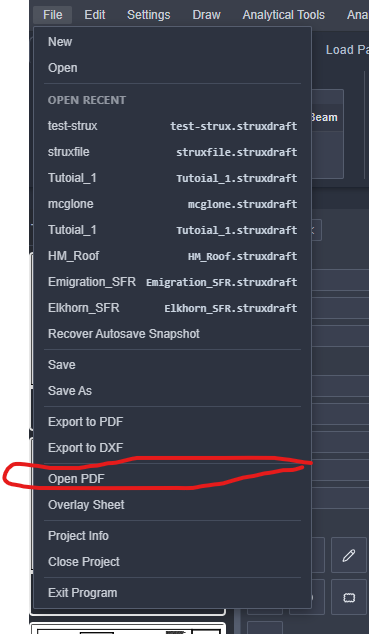
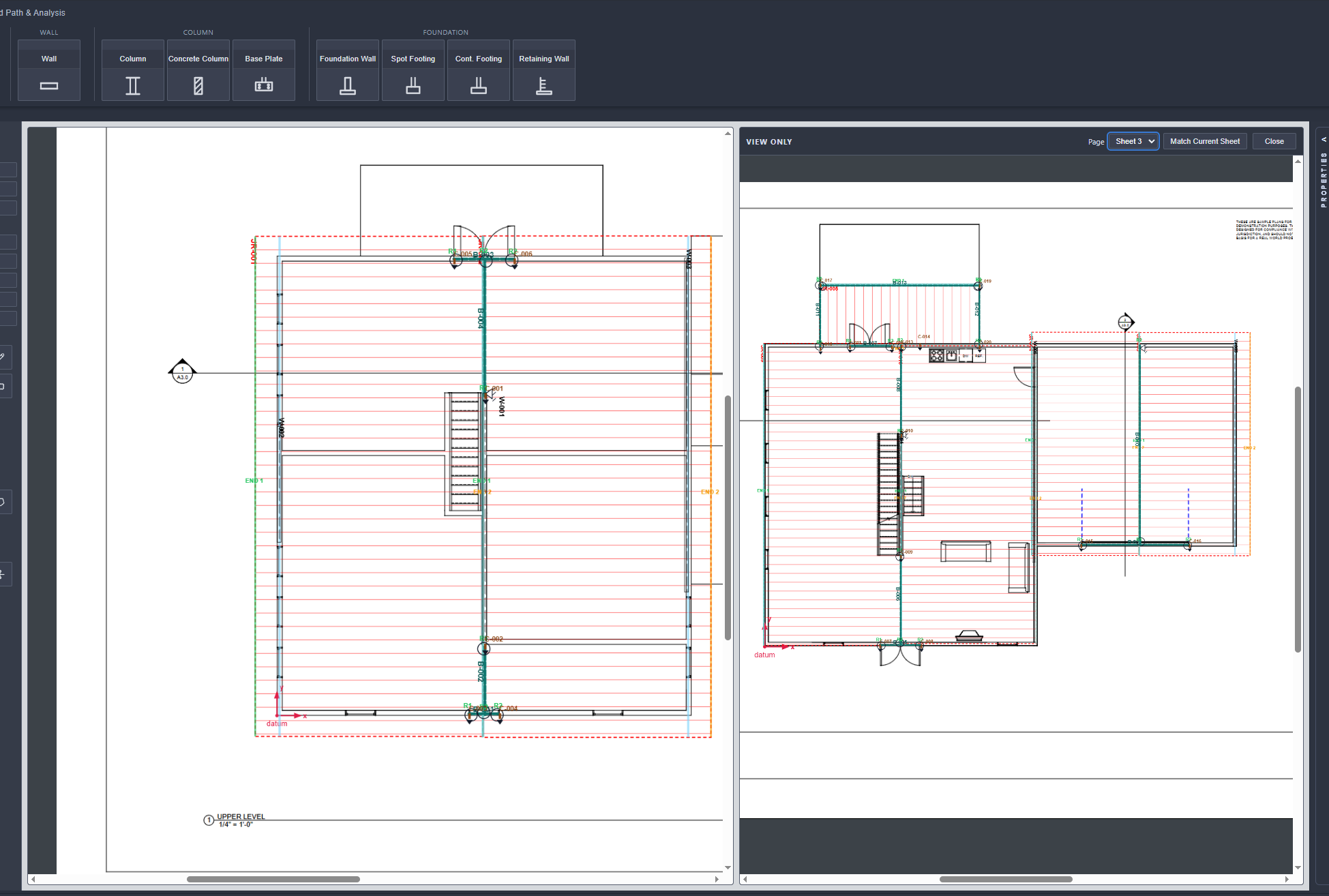
Go to File → Import PDF to load your architectural plan set. StruxDraft will render each page and display thumbnails in the bottom-left panel. Click a thumbnail to navigate to that page.
Where to look:
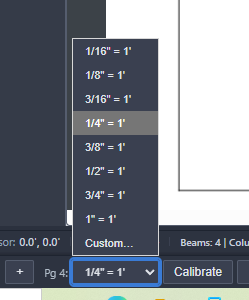
Before placing any elements, set the drawing scale so StruxDraft can compute real dimensions from your cursor positions. This is critical for accurate span lengths and member spacing.
How: Use the scale setting in the toolbar or settings dialog. Common residential scales are 1/4" = 1'-0" or 3/16" = 1'-0". Once set, the Quick Measure tool (Ctrl+Q) will show real-world dimensions as you drag.
Select the Joist (Rect) tool (Ctrl+J) and drag a rectangle over the floor area. StruxDraft will create a joist region with default properties. Double-click the region to open the Joist Design Dialog where you can set:
For irregular floor shapes, use the Joist (Polygon) tool (Ctrl+S) to click vertices defining a custom boundary.
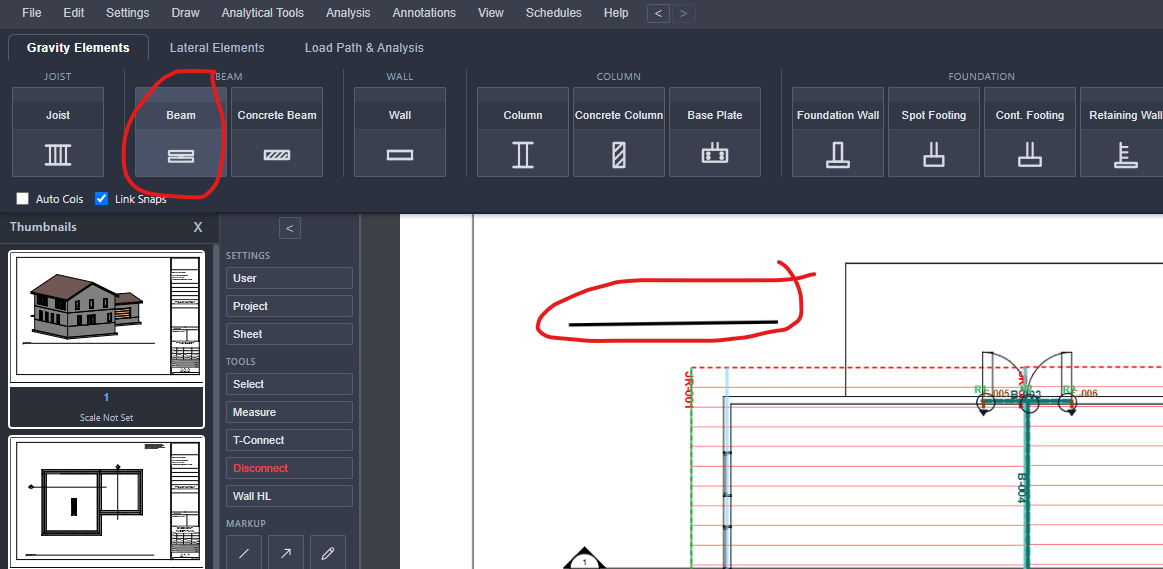
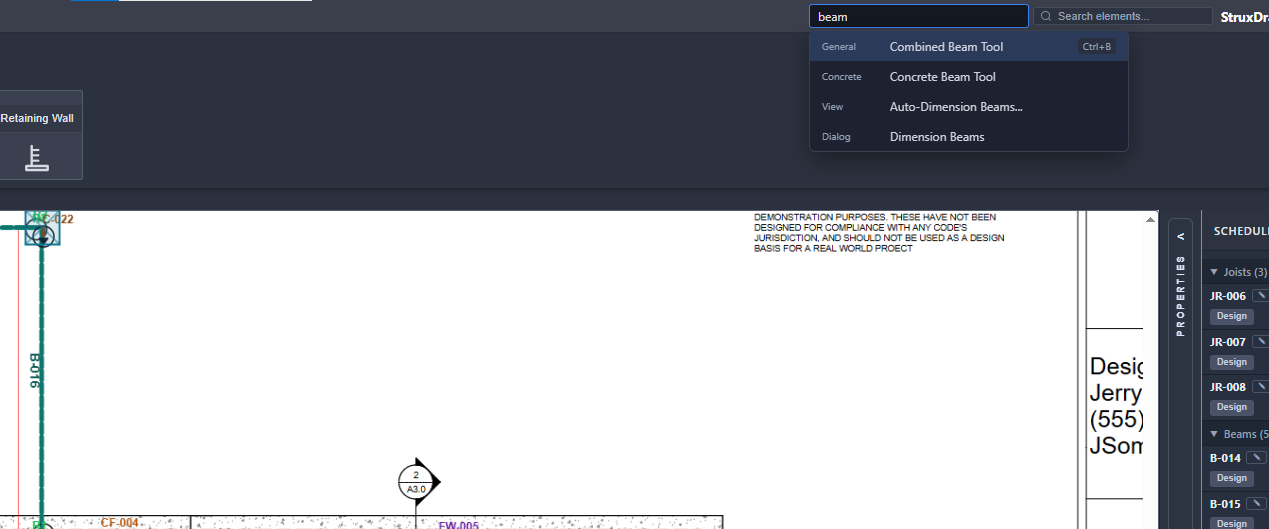
Select the Beam tool (Ctrl+B) and drag from one support point to another. Hold Shift while dragging to snap to horizontal or vertical. The beam appears on the plan, and its span is calculated from the drawing scale.
Double-click the beam to open the Beam Design Dialog:
Select the Column tool (Ctrl+R) and click at beam endpoints. StruxDraft can auto-place columns at beam supports. The column automatically receives the beam reactions (R1 or R2) as axial load.
Connected Load Flow: At this point, your load path is: Joists → Beam → Column. If you change the joist spacing, the beam loads recalculate, which updates the column load automatically.
Continue building out the structure:
The Schedule Panel on the right side of the screen shows all placed members organized by type. Each entry shows the member tag, key properties, and a utilization badge:
Click any schedule entry to select and zoom to that member on the canvas. All properties are inline-editable — change a beam size right from the schedule and watch utilization update instantly.
Use the Annotation Toolbar to add markup to your plans:
Keynotes are managed in the Keynote Schedule — add numbered notes that reference specific conditions on the plans.
Open the Calculation Report from the toolbar or menu. StruxDraft generates a comprehensive structural calculation document with:
Click Print to use your browser's native print dialog — print to PDF or to a physical printer.
When your design is complete:
Your .sdp project file can be reopened anytime to continue editing, or elements can be imported into another project.
Once you're comfortable with the core workflow, explore these powerful features to get even more out of StruxDraft.
Select the Steel Beam tool from the toolbar and drag from support to support — same workflow as wood beams, but the design dialog opens to the AISC 360 world.
What you configure in the Steel Beam Design Dialog:
What StruxDraft checks automatically (both LRFD and ASD simultaneously):
Steel beams participate in the connected load flow — joist regions feed tributary loads, and steel beam reactions feed into steel columns or footings below.
Select the Steel Column tool and click to place at steel beam endpoints (or anywhere). On the canvas, StruxDraft renders the actual cross-section shape — W-shapes show the I-section with flanges and web; HSS sections show the double-walled rectangle.
What you configure:
What StruxDraft checks (LRFD and ASD):
Axial loads from connected steel beams flow in automatically. LRFD and ASD load combinations per ASCE 7-22 are evaluated simultaneously — the govering combination is reported.
Select the Retaining Wall tool and click to place on your foundation plan. The Retaining Wall Design Dialog is the most comprehensive member dialog in StruxDraft — it combines ASD stability with ACI 318-19 LRFD strength design.
Geometry inputs:
Soil & material inputs:
What StruxDraft checks:
One of StruxDraft's most unique features. When working with architectural PDFs full of furniture, fixtures, room labels, and hatching, the Wall Highlighter lets you isolate just the structural walls.
Two modes:
What happens under the hood:
This is invaluable when you receive busy architectural plans and need a clean structural view to work from.
AutoFrame is a one-click automatic framing tool. After you've placed your walls on the plan, AutoFrame analyzes the wall geometry and generates a complete framing layout — joists, beams, and headers — sized to code.
How to use it:
What AutoFrame does:
AutoFrame is in beta — review the generated framing and adjust as needed. It's a powerful starting point, not a final answer.
StruxDraft includes four measurement tools beyond the basics. All persistent measurements are saved with the project and use your drawing scale for real-world values.
Quick Measure (Ctrl+Q):
Linear Measure (Annotation Toolbar):
Polyline Measure (Annotation Toolbar):
Area Measure (Annotation Toolbar):
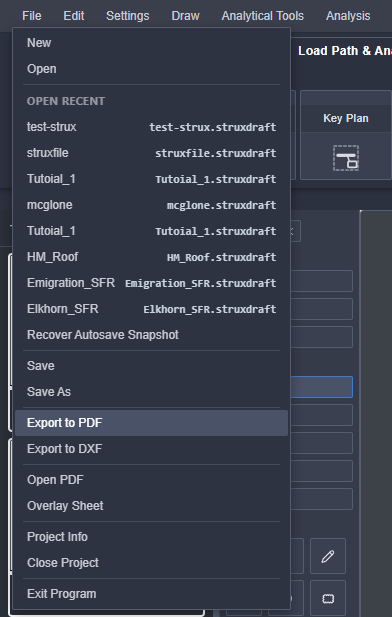
The Annotation Toolbar (left sidebar, below the structural tools) gives you 13 markup tools. Here's the complete set:
Annotation features:
When you select a beam, column, or footing, the Connected Loads Panel shows exactly where every load comes from. This is StruxDraft's most powerful verification tool.
What the panel shows:
How connected loads work:
The load flow engine includes circular reference detection — if a load path loops back on itself, it's flagged without crashing.
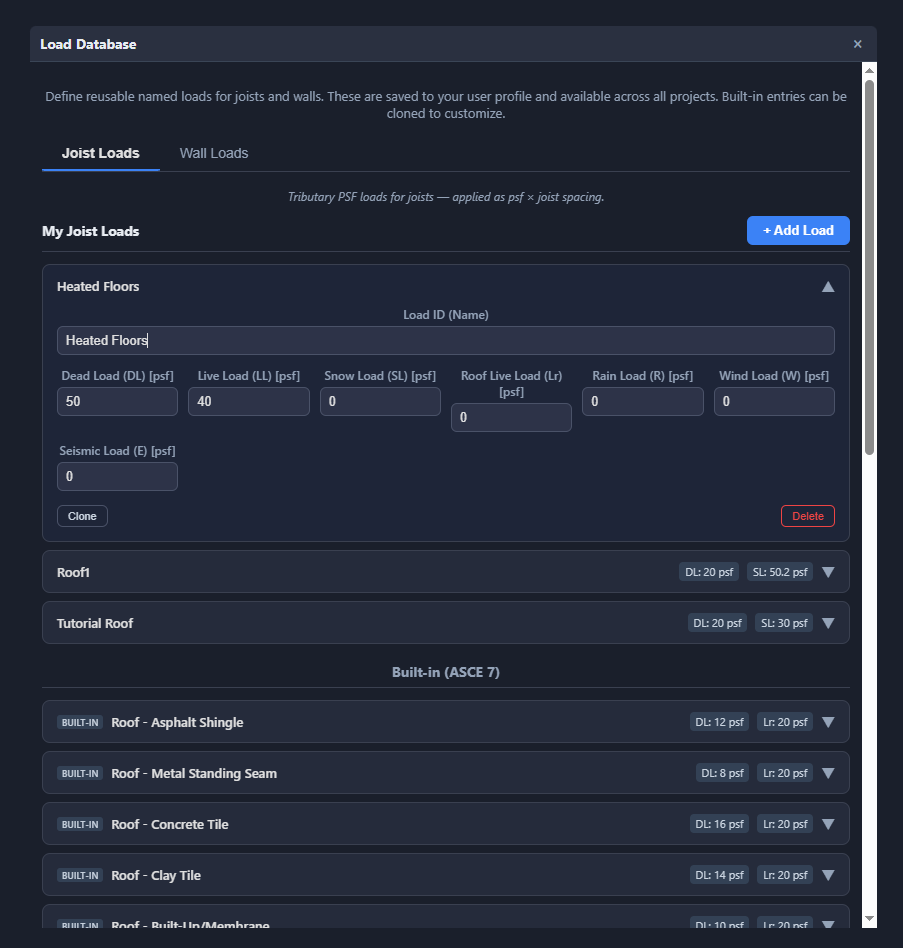
StruxDraft's database system is fully customizable. Behind every material dropdown, grade selector, and load combination set, there's a CSV database table you can extend or override.
The 15 database tables:
How customization works:
Example: a local jurisdiction requires a different snow load factor? Create a custom load combination set with your factors, assign it to the project, and every member analysis uses your combos.
Grid Lines:
DXF Export:
CalcStudio is a dedicated calculation environment that uses the same NDS 2018 / AISC 360 / ACI 318-19 engine as StruxDraft — but without the PDF overlay. Access it via ?mode=detached-calc query param or from the app menu.
When to use CalcStudio:
CalcStudio features:
Quick access to every tool in StruxDraft. Most shortcuts work with Ctrl (Windows/Linux) or Cmd (Mac).
| Action | Shortcut | Description |
|---|---|---|
| New Project | Ctrl+N | Create a new blank project |
| Open Project | Ctrl+O | Open an existing .sdp file |
| Save | Ctrl+S | Save current project |
| Save As | Ctrl+Shift+S | Save to new file path |
| Undo | Ctrl+Z | Undo last action |
| Redo | Ctrl+Y | Redo undone action |
| Copy | Ctrl+C | Copy selected element(s) |
| Paste | Ctrl+V | Paste with offset |
| Delete | Delete | Remove selected element(s) |
| Beam Tool | Ctrl+B | Activate beam placement |
| Wall Tool | Ctrl+W | Activate wall placement |
| Joist (Rect) | Ctrl+J | Rectangular joist region |
| Joist (Polygon) | Ctrl+S | Polygon joist region |
| Column Tool | Ctrl+R | Place column |
| Header Tool | Ctrl+E | Place header |
| Anchor Bolt | Ctrl+A | Place anchor bolt |
| Quick Measure | Ctrl+Q | Temporary measurement |
| Line Annotation | Ctrl+L | Draw line annotation |
| Textbox | Ctrl+T | Place text annotation |
| Zoom In | + / = | Zoom into canvas |
| Zoom Out | - | Zoom out of canvas |
| Pan | Middle mouse drag | Pan the viewport |
| Previous Page | ← | Navigate to previous PDF page |
| Next Page | → | Navigate to next PDF page |
| Escape | Esc | Cancel current tool / deselect |
| Select All | Ctrl+A | Select all elements on current page |
| Fit to Page | Ctrl+0 | Reset zoom to fit page in viewport |
Get the most out of StruxDraft with these workflow tips.
Instead of manually entering beam loads, connect joist regions to beams. When joist spacing or loads change, all downstream beams, columns, and footings update automatically. Check the Connected Loads Panel to verify every pound is tracking correctly.
When you have many identical beams (e.g., repetitive floor joists), designate one as the parent and mark the rest as "Similar To". They share properties and show as SIM in the schedule — keeping your calcs clean.
Use Ctrl+Q to verify dimensions on the PDF before committing to element placement. The measurement uses your drawing scale for real-world distances.
Hold Shift while dragging beams, walls, or headers to constrain to perfectly horizontal or vertical. Keeps your structural overlay clean and aligned.
You don't have to find a member on the canvas to edit it. Click any row in the Schedule Panel to select it, and edit properties directly inline. Changes take effect immediately.
Use the built-in Simpson library to find the right hanger for your connection. Filter by family, search by model number, or let StruxDraft find compatible hangers for your member sizes.
In Settings, enable "Auto-Size on Draw" for any member type. When enabled, StruxDraft automatically iterates through candidate sizes when you place a new element, picking the lightest passing member. Works for beams, columns, headers, joists, steel beams, and steel columns.
Use the Area Measure tool to verify tributary areas on the plan. Click to define a polygon around the load area, and StruxDraft shows the enclosed SF. Compare against your joist region tributary widths for a quick sanity check.
Before placing any structural elements, use the Wall Highlighter to strip away architectural clutter. You'll get a clean view of just the walls — making it much easier to place beams, columns, and headers accurately.
Use AutoFrame (beta) to generate an initial framing layout, then manually adjust sizes, add point loads, connect load sources, and fine-tune. It's much faster than starting from scratch — especially on repetitive residential plans.
Steel beams and columns report both LRFD and ASD results simultaneously. Use whichever your jurisdiction requires — the governing combination is identified automatically for each method.
If your local code requires non-standard load combinations (e.g., higher snow factors, flood loads), create a custom combo set in the database editor and assign it to your project. Every member analysis will use your combos.
Have questions or want to see a live demo? We'd love to walk you through it.
Contact Us